🧩 Step-1: Required Modules Enable
composer require drupal/views_slideshow
drush en views_slideshow views_slideshow_cycle -y
👉 Admin UI:
Extend →
Views Slideshow
Views Slideshow Cycle
🧩 Step-2: Create a New View
- Structure → Views → Add view
- Fill details:
- View name: Homepage Slideshow
- Show: Content
- Of type: (Article / Page / Slider content type)
- Create a block ✔️
- Save & edit
🧩 Step-3: Change Format to Slideshow
Views edit screen 👇
- Format → click Unformatted list
- Select Slideshow
- Slideshow type: Cycle
- Apply
🧩 Step-4: Add Fields (Image + Title)
Add Image field
Add → Content: Image field
Settings:
- Image style: Large / Slider style
- Link image to: ❌ None
Add Title field (Caption)
Add → Content: Title
Settings:
- Uncheck Link to content
- Rewrite results ✔️ (optional)
🧩 Step-5: Configure Slideshow Settings
Click ⚙️ Settings next to Slideshow
Recommended settings 👇
Option
Value
Timeout
5000
Speed
1000
Pause on hover
✔️
Show controls
✔️
Show pager
✔️
Apply ✔️
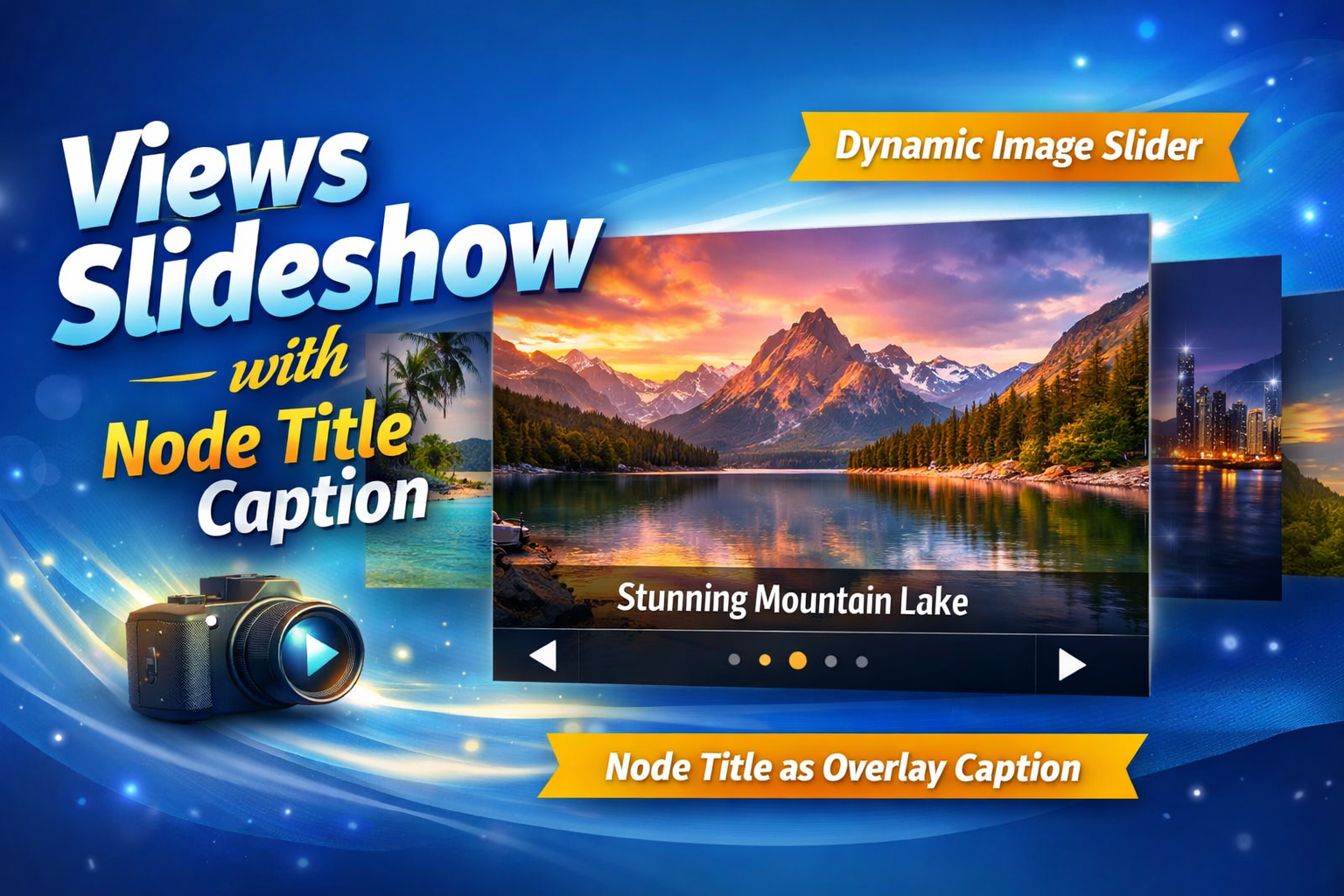
🧩 Step-6: Make Title as Caption (Important)
Method-1 (Easy – Using Field Order)
- Drag Title field below Image field
- Views will render HTML like:
<div class="views-field-image">...</div>
<div class="views-field-title">My Node Title</div>
Then CSS দিয়ে caption বানাও 👇
🎨 Step-7: Caption CSS (Recommended)
Add this CSS in theme or custom CSS:
.views-slideshow-cycle-main-frame-row {
position: relative;
}
.views-field-title {
position: absolute;
bottom: 20px;
left: 20px;
color: #fff;
background: rgba(0,0,0,0.6);
padding: 10px 15px;
font-size: 20px;
}
👉
🧩 Step-8: Place the Slideshow Block
Structure → Block layout →
Place block → Homepage Slideshow